fixbg.uk is a new domain. Outlook, Gmail and Apple Mail are conservative with first-time senders and routinely send the first email or two to the spam folder, even when the email is fully authenticated. This page walks you through finding the email and telling your inbox it is wanted. Once you do that, future fixbg.uk emails land in your inbox normally.
Sender: noreply@fixbg.uk · subject usually contains “fixbg.uk”Takes about 30 seconds in any email client
The universal three stepsWORKS EVERYWHERE
01Open your spam or junk folder. The folder is called Junk, Spam, or Bulk depending on your email service. Look for a sender named noreply@fixbg.uk or a subject containing “fixbg.uk”.STEP 01
02Open the email. If it has a banner across the top warning “suspicious message” or “not safe to respond to”, that is normal for first-time senders and goes away after step 03.STEP 02
03Click Not junk / Not spam / Report not spam. The exact label and location depends on your email client — see the per-provider sections below for screenshots. Future fixbg.uk emails will land in your inbox automatically.STEP 03 · THE IMPORTANT ONE
AOutlook.com / Hotmail / Live (web and new Outlook app)
1. In the left sidebar click Junk Email. If you don’t see it, scroll down or click More.
2. Open the message from fixbg.uk <noreply@fixbg.uk>.
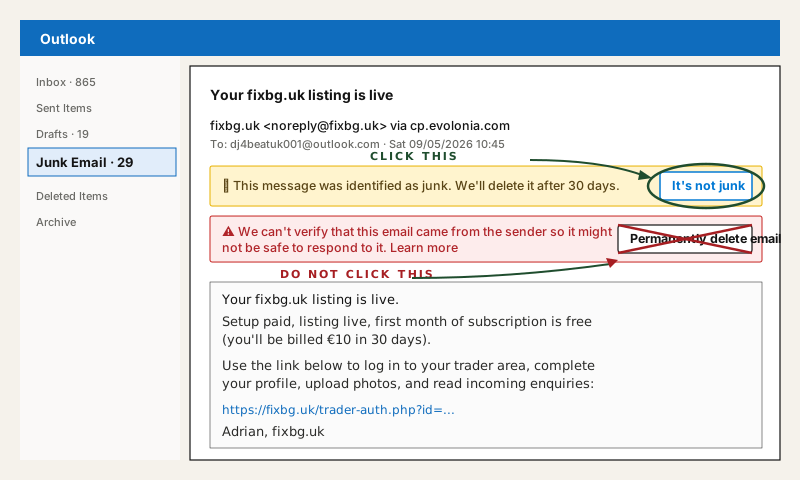
3. At the top of the message, click It’s not junk (the button sits next to the “This message was identified as junk” banner).
4. Outlook will move the message to your inbox and ask if you want to trust the sender. Click Trust sender or OK. Done.
Outlook web · click It’s not junk at the top of the message
PROVIDER A · OUTLOOK / HOTMAIL / LIVE.COM
BOutlook (classic Windows desktop app)
1. Open the Junk Email folder in the navigation pane on the left.
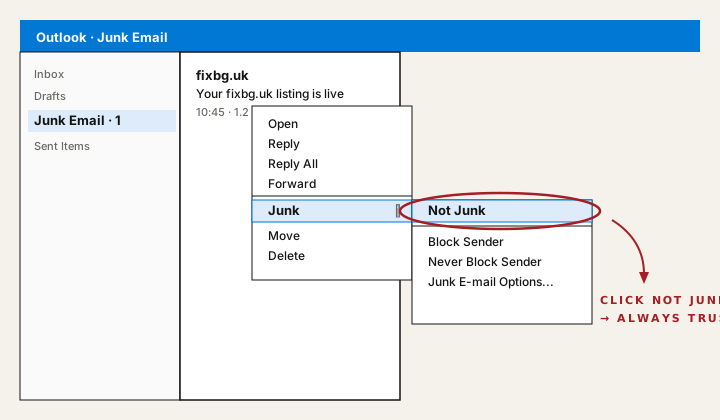
2.Right-click the message from fixbg.uk.
3. Hover over Junk, then click Not Junk.
4. A dialog asks whether to trust the sender’s address. Tick Always trust email from this sender and click OK.
Outlook desktop · right-click → Junk → Not Junk → Always trust
PROVIDER B · OUTLOOK CLASSIC FOR WINDOWS
CGmail (web and Android / iOS app)
Web (mail.google.com):
1. In the left sidebar click More, then Spam.
2. Open the message from fixbg.uk.
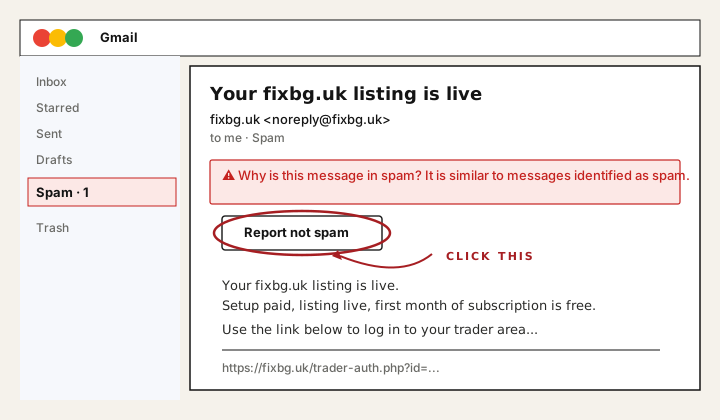
3. Click the Report not spam button at the top of the message (it’s next to the orange “Why is this message in spam?” banner).
Mobile app:
1. Tap the menu (☰) and choose Spam.
2. Tap the message, then tap the three-dot menu in the top right.
3. Tap Report not spam.
To make sure future emails go to inbox, also add noreply@fixbg.uk to your contacts: in the message, hover/long-press the sender name, then click Add to contacts.
Gmail web · Report not spam at the top of the message
PROVIDER C · GMAIL
DApple Mail (iCloud, iPhone, iPad, Mac)
iPhone or iPad:
1. Open the Mail app and tap Mailboxes in the top left.
2. Tap Junk.
3. Open the fixbg.uk message, tap the flag icon at the bottom, then tap Mark as Not Junk.
Mac:
1. Open Mail, click Junk in the sidebar.
2. Click the fixbg.uk message.
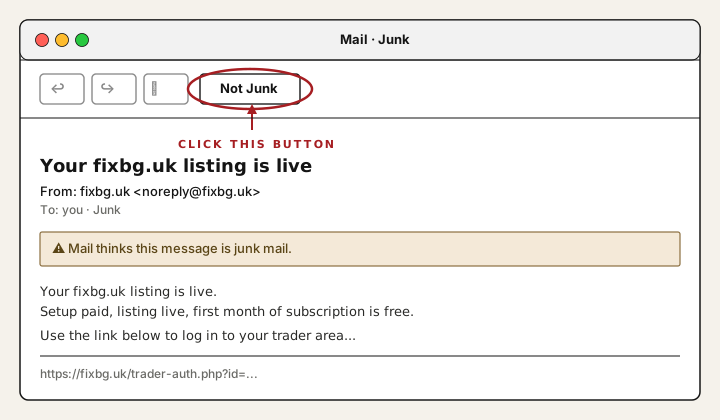
3. Click Not Junk in the toolbar at the top of the message (or press ⇧⌘J).
Apple Mail also lets you add the sender to VIP. Click the sender’s name in the message header and choose Add to VIPs — those messages skip junk filtering entirely.
Apple Mail · Not Junk button in the toolbar
PROVIDER D · APPLE MAIL / ICLOUD
EYahoo Mail / AOL / other providers
Yahoo Mail (web):
1. Click Spam in the left sidebar.
2. Tick the box next to the fixbg.uk message.
3. Click Not Spam in the toolbar at the top.
Most other providers follow the same pattern: open the spam/junk folder, open the message, click the button labelled some variation of Not spam, Not junk, Report not spam, or Mark as legitimate. The button is almost always near the top of the message or in the toolbar.
If you genuinely cannot find a way to mark our email as wanted, simply add noreply@fixbg.uk to your address book / contacts. Most spam filters whitelist contacts.
PROVIDER E · YAHOO / AOL / OTHER
Why this happensFOR THE CURIOUS
fixbg.uk is a brand-new domain. We have done the technical homework, but reputation takes time.
Email providers like Outlook and Gmail use a sender’s history to decide whether to deliver a message. We have set up SPF, DKIM and DMARC correctly — you can verify by viewing any of our emails as raw source — but until enough people have received our emails and not flagged them as spam, the providers err on the side of caution.
This is normal for any new domain. Established senders enjoy near-100% inbox delivery; new senders typically see 60-80% inbox in the first month, then climb steadily.
When you mark a fixbg.uk email as “not junk”, you are training your own mailbox immediately, and contributing a tiny positive signal that helps every other recipient on your provider too. Thank you.
Still cannot find the email?
Wait five minutes after submitting the form, then check the spam folder again. If after ten minutes the email is genuinely nowhere, write to editor@fixbg.uk from the same address and we will resend manually. We read every message.